

Amazon wish lists are the secret weapon for organized shoppers and gift recipients. Whether you’re planning future purchases, dropping gift hints to friends and family, or organizing items for different projects, learning how to make an Amazon wish list is a game-changer for your online shopping experience.
Wish lists simplify shopping and gift-giving like nothing else
Creating an Amazon wish list takes just a few minutes but delivers massive benefits. As a result, you can track items you want, share gift ideas with others, and receive notifications when prices drop on your favorite products. Moreover, with multiple list options and robust privacy controls, Amazon’s wish list system has evolved into a powerful tool for both personal organization and social gift coordination.
Additionally, the process works across all devices and offers surprising flexibility with features most shoppers don’t even know exist. Furthermore, recent updates in 2025 have made the system even more user-friendly, with enhanced privacy controls and improved mobile experiences.
How to make an Amazon wish list on desktop

Creating your first wish list on Amazon’s website is straightforward:
- Sign in and access the list feature
- First, go to Amazon.com and sign into your account
- Next, hover over “Account & Lists” in the top-right corner
- Finally, look for the “Your Lists” section in the dropdown menu
- Create your new list
- Initially, click “Create a List” under the “Your Lists” section
- Then, enter a name for your list in the pop-up window
- Subsequently, click “Create List” to generate your new wish list
- Customize your list settings
- Once created, click the three dots (⋮) menu, then select “Manage List”
- At this point, you can update your shipping address, set privacy level, and enable the “Don’t spoil my surprises” option
- Privacy options include Private (only you), Shared (only people with the link), or Public (searchable by anyone)
- In conclusion, click “Save Changes” when finished
The desktop version gives you the most control over your wish list settings, making it ideal for initial setup. Interestingly, you’ll notice Amazon has actually updated their terminology in 2025, now referring to “Lists” instead of “Wish Lists” in many places, though the functionality remains identical.
How to make an Amazon wish list on the mobile app
Managing Amazon wish lists on mobile devices is just as easy when you’re on the go:
- Access the lists feature
- Open the Amazon Shopping app on your iOS or Android device
- Tap the profile icon (person silhouette) at the bottom of the screen
- Tap “See all” next to “Your Lists”
- Create your new list
- Tap “Create a List” in the upper-right corner
- Enter a name for your new list
- Tap “Create” to finish
- Customize your settings
- Find your list and tap the three dots (⋮) in the upper-right corner
- Select “Manage List” to adjust privacy settings, shipping address, and other options
- Tap “Save Changes” when finished
The mobile experience has been significantly streamlined in 2025, making it much easier to create and manage your wish lists while shopping on your phone or tablet.
Adding items to your Amazon wish list
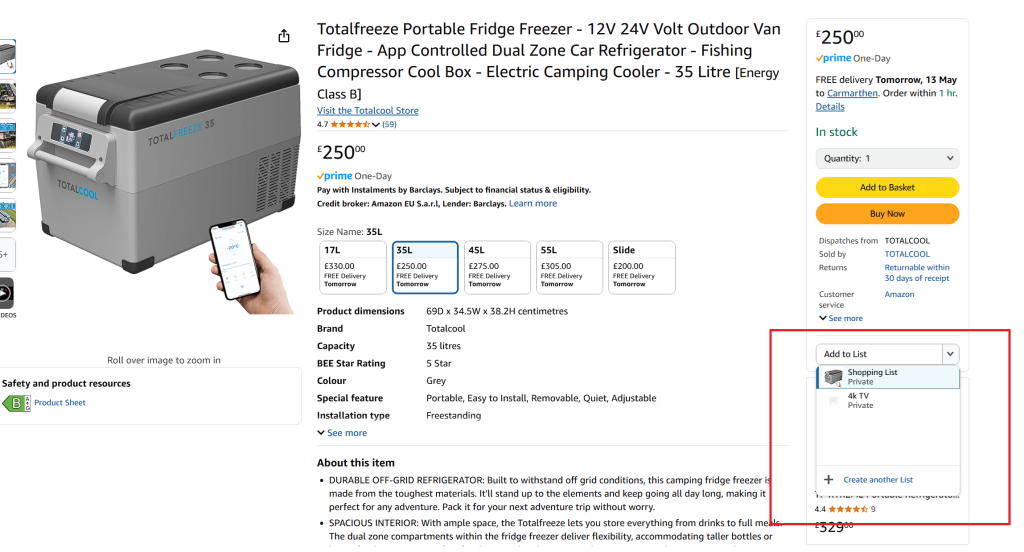
The whole point of learning how to make an Amazon wish list is to fill it with things you want. Here’s how to add items across different platforms:
From product pages (desktop):
- Navigate to the product you want to add
- Look for the “Add to List” dropdown button on the right side
- Select which list you want to add the item to
From product pages (mobile app):
- Navigate to the product you want
- Scroll down and tap “ADD TO LIST”
- Select your destination list
From search results (quicker method):
- While browsing search results, look for the heart icon (♡) next to products
- Click/tap the heart to add the item to your default list
Pro tip: When you learn how to make an Amazon wish list properly, you’ll discover you can add items from other websites too! Using the Amazon Assistant browser extension, you can add products from virtually any online store to your Amazon wish list.
Why you should make an Amazon wish list: Key benefits
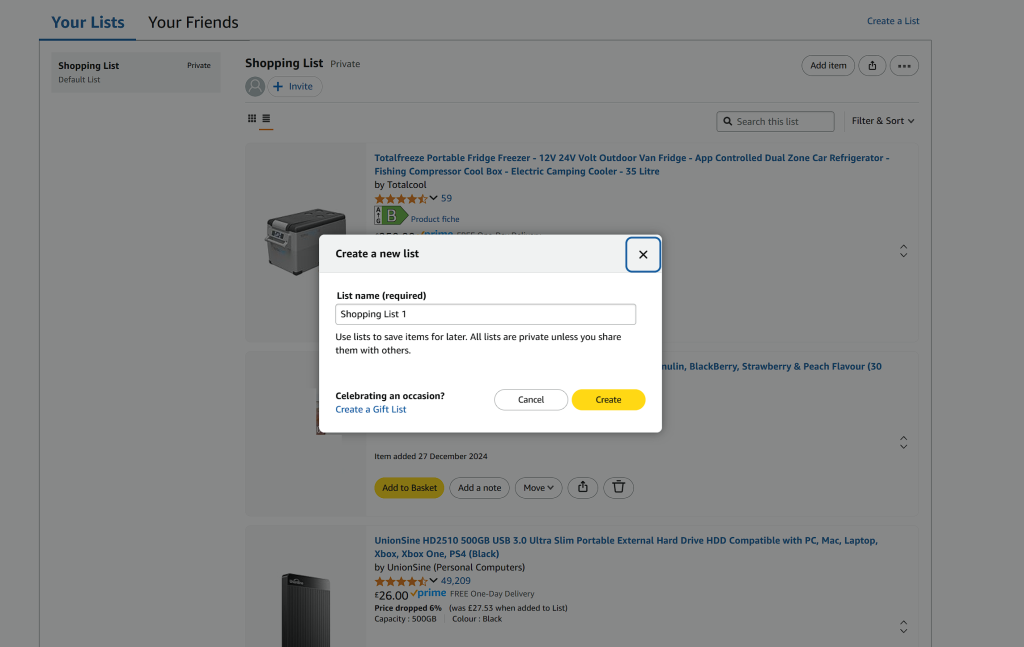
Once you know how to make an Amazon wish list, you’ll wonder how you ever managed without one. Consequently, here are the standout benefits:
- Organization and tracking
- First, keep track of items you plan to purchase later
- Meanwhile, monitor price changes with automatic notifications
- Additionally, stay organized during busy shopping periods like Prime Day
- Gift coordination made simple
- To begin with, share your preferences with friends and family
- Furthermore, avoid duplicate gifts with automatic marking of purchased items
- As a result, gift-giving for birthdays, holidays, and special occasions becomes much simpler
- Shopping efficiency
- Above all, gain quick access to previously viewed items you’re interested in
- In addition, save time searching for products you’ve already found
- Likewise, group related items for specific projects or events
- Price monitoring
- Most importantly, get alerts when prices drop on your wish list items
- Similarly, track deals and promotions for wanted items
- Therefore, make more informed purchasing decisions
Learning how to make an Amazon wish list is undoubtedly the first step to smarter shopping and better gift coordination.
Organizing and managing your wish lists like a pro
Want to get the most out of your Amazon wish lists? Here’s how to organize them effectively:
Create multiple lists for different purposes
- Make separate lists for different categories (electronics, books, home goods)
- Create occasion-specific lists (birthday, holiday, wedding)
- Use descriptive names to keep lists organized
Add details to your items
- Set priority levels (highest, high, medium, low, lowest)
- Add comments with specific details about items (color, size, model)
- Specify quantities needed for each item
Managing your lists
- Rename lists as needed through the “Manage List” option
- Move items between lists by selecting the three dots next to an item and choosing “Move”
- Archive lists you no longer need but want to keep for reference
Different list types to consider
- Standard wish lists for personal use or gift ideas
- Idea Lists for themed collections you want to share
- Shopping Lists for regular purchases
- Specialized registries for weddings or baby showers
Understanding how to make an Amazon wish list for different purposes gives you maximum flexibility.
Sharing your wish list with others

Once you’ve mastered how to make an Amazon wish list, sharing it with others is the next step:
- Set appropriate privacy settings first
- Private: Only you can see it
- Shared: Only visible to people with the direct link
- Public: Anyone can search for and find your list
- Share via email
- Open your list
- Click “Send list to others” or “Invite”
- Enter email addresses of recipients
- Add a personal message (optional)
- Choose whether recipients can only view or can view and edit
- Click “Send”
- Share via direct link
- Open your list
- Click “Send list to others” or “Invite”
- Select viewing permissions
- Click “Copy Link”
- Share through any messaging app, social media, or email
- What others will see
- Items on your list (images, titles, prices)
- Your name as list owner
- City and state of your shipping address (for delivery)
- Comments or notes you’ve added
- Priority levels you’ve assigned
When you share your wish list, recipients can purchase items directly. The items will be shipped to your address, but your full address remains private (only city and state are shown).
What happens when someone buys from your wish list
After you’ve learned how to make an Amazon wish list and shared it, here’s what happens when someone makes a purchase:
- The buyer adds the item to their cart directly from your wish list
- During checkout, the item is automatically shipped to your address
- The buyer only sees your name, city, and state (your street address stays private)
- The buyer can add a gift message and gift wrapping
By default, Amazon enables the “Don’t spoil my surprises” feature, which keeps purchases hidden from your view while still preventing duplicate purchases by others. This means you won’t know what’s been bought until it arrives!
Common questions about Amazon wish lists
Can others see when I add items to my wish list?
No, people can only see the items currently on your list, not when they were added. In fact, the timestamp information is visible only to you as the list owner.
Will I know who purchased items from my wish list?
Yes, you can see who purchased items by checking the “Purchased” filter, unless you have “Don’t spoil my surprises” enabled. However, this information is only available after the purchase has been completed.
Can I create multiple wish lists for different purposes?
Absolutely! You can create unlimited wish lists for different occasions or categories. For instance, you might want separate lists for birthday ideas, household items, and books to read.
How do I get notified about price drops?
Amazon will send push alerts (if using the app) when prices drop or deals become available for items on your list. Consequently, you’ll never miss a good deal on items you’re interested in.
What happens if an item becomes unavailable?
The item remains on your list but is marked as unavailable. Nevertheless, you may receive notifications when it becomes available again, allowing you to purchase it when it returns to stock.
Can I prevent others from seeing what’s already been purchased?
Yes, enable the “Don’t spoil my surprises” option in your list settings to keep purchases hidden from you while still preventing duplicate purchases. As a result, you’ll maintain the element of surprise for gifts.
Can I add digital items like e-books?
Yes, digital items can be added to wish lists just like physical products. In other words, everything from Kindle books to music downloads can be included on your list.
Special occasions and registry features
Amazon offers specialized wish list options for special occasions:
Wedding Registry
- 20% completion discount on remaining items after the wedding (up to $300 off)
- Free 180-day returns
- Group gifting for expensive items
- Thank you list tracker
Baby Registry
- 15% completion discount (up to $300)
- Free welcome box for Prime members ($35 value)
- 365-day return period
- Diaper fund and group gifting options
These specialized registries offer additional features beyond standard wish lists, making them perfect for life’s biggest moments. If you’re planning to sell products on Amazon, understanding Amazon’s marketplace sellers can help you appreciate how the platform’s shopping features benefit both buyers and sellers.
Conclusion
Learning how to make an Amazon wish list unlocks a powerful tool for organized shopping and gift coordination. Whether you’re creating a personal list of items to buy later, sharing gift ideas with loved ones, or setting up a registry for a special occasion, Amazon’s wish list system provides flexibility, privacy controls, and convenient features that enhance your shopping experience.
For a visual walkthrough with screenshots of the entire process, check out this complete guide to Amazon wish lists that covers every detail. In addition, if you’re interested in how Amazon’s marketplace benefits shoppers, exploring more about the platform’s ecosystem can help you make the most of your shopping experience.
Overall, Amazon wish lists represent a significant advancement in online shopping convenience. Therefore, start creating your first list today and discover why millions of shoppers consider wish lists an essential part of their Amazon experience.


