

Starting an online business on Amazon begins with understanding how to use seller central in Amazon effectively. This platform serves as your command center for everything related to your Amazon selling operation, from listing products to managing inventory and analyzing your sales performance.
Here’s what we’ll cover in this article:
- What Amazon Seller Central is and why it matters
- Setting up your Seller Central account
- Choosing between Individual and Professional selling plans
- Navigating the Seller Central dashboard
- Adding and managing product listings
- Understanding fulfillment options
- Monitoring your account health and performance
- Common questions about Seller Central
What is Seller Central in Amazon?

Seller central in Amazon is the web-based dashboard that serves as your operational headquarters for selling on the Amazon marketplace. Think of it as your go-to resource for managing every aspect of your Amazon business. Through this portal, you can add product information, update inventory, process orders, manage payments, and access helpful content to navigate your Amazon selling journey.
Once you register as an Amazon selling partner, you’ll have immediate access to your Seller Central account. This centralized hub allows you to list all your products, monitor sales, and handle customer service issues all in one place.
Setting Up Your Amazon Seller Central Account
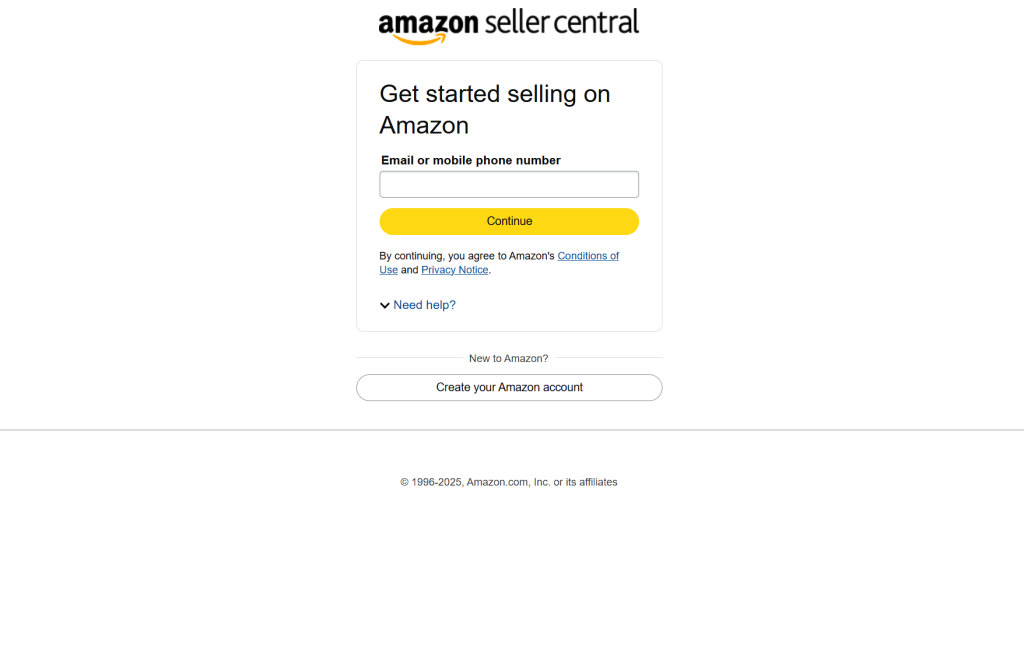
Before you can start selling products on Amazon, you’ll need to create your seller central Amazon account. Here’s what you’ll need to get started:
- Business email address or Amazon customer account
- Valid credit card (international cards are accepted)
- Government-issued ID (for identity verification)
- Business information including tax details
- Phone number for verification
- Bank account information for receiving payments
When setting up your account, you’ll need to choose between the Individual and Professional selling plans.
Individual vs. Professional Selling Plans
Amazon offers two main types of selling plans:
Individual Plan:
- Pay $0.99 per item sold (or £0.75 in the UK)
- Best for selling fewer than 40 items per month
- Limited access to advanced selling tools
- Good for testing the waters if you’re undecided about what to sell
Professional Plan:
- Flat fee of $39.99 per month (or £25 in the UK)
- No per-item fee
- Access to bulk listing tools and API capabilities
- More detailed reporting features
- Ability to qualify for featured product placements
- Required for selling in restricted categories
If you plan to sell more than 40 items monthly, the Professional plan typically makes more financial sense. You can always switch between plans as your business grows.
Navigating the Seller Central Dashboard
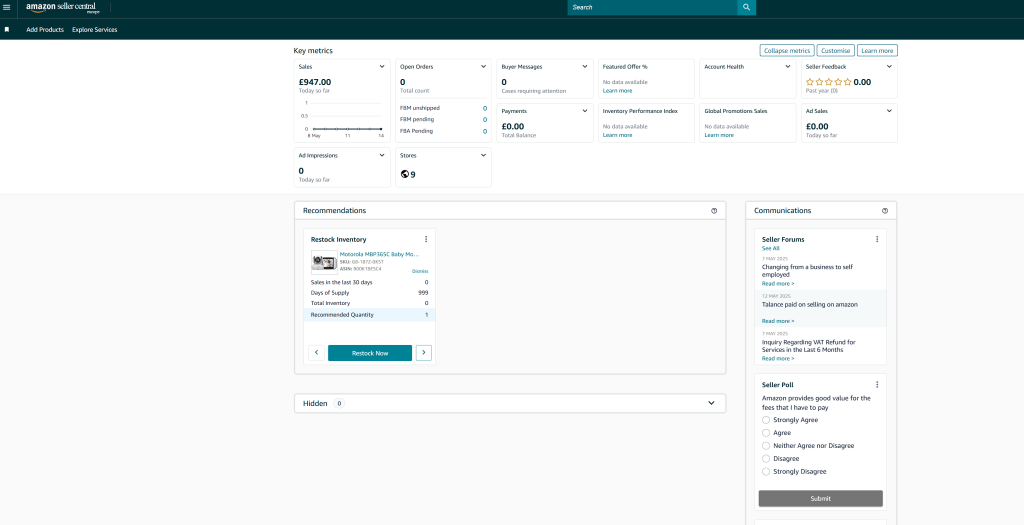
Once your account is set up, you’ll be introduced to the seller central in Amazon dashboard. This is where you’ll manage your entire Amazon business. Here are some key sections you’ll find:
Home Page
The homepage displays your account health, recent orders, and important announcements from Amazon. You’ll also see critical alerts about your account that need attention.
Inventory Tab
This is where you’ll:
- Add new products to your catalog
- Update existing listings
- Monitor inventory levels
- Create shipping plans for FBA (Fulfillment by Amazon)
Orders Tab
Here you can:
- View new orders
- Process and fulfill orders
- Print shipping labels (for seller-fulfilled orders)
- Manage returns and refunds
Reports Tab
Access detailed information about:
- Sales performance
- Inventory health
- Customer metrics
- Business reports and analytics
Performance Tab
Monitor your account health metrics including:
- Order defect rate (aim for below 1%)
- Pre-fulfillment cancel rate (keep below 2.5%)
- Late shipment rate (maintain below 4%)
Adding Products in Seller Central
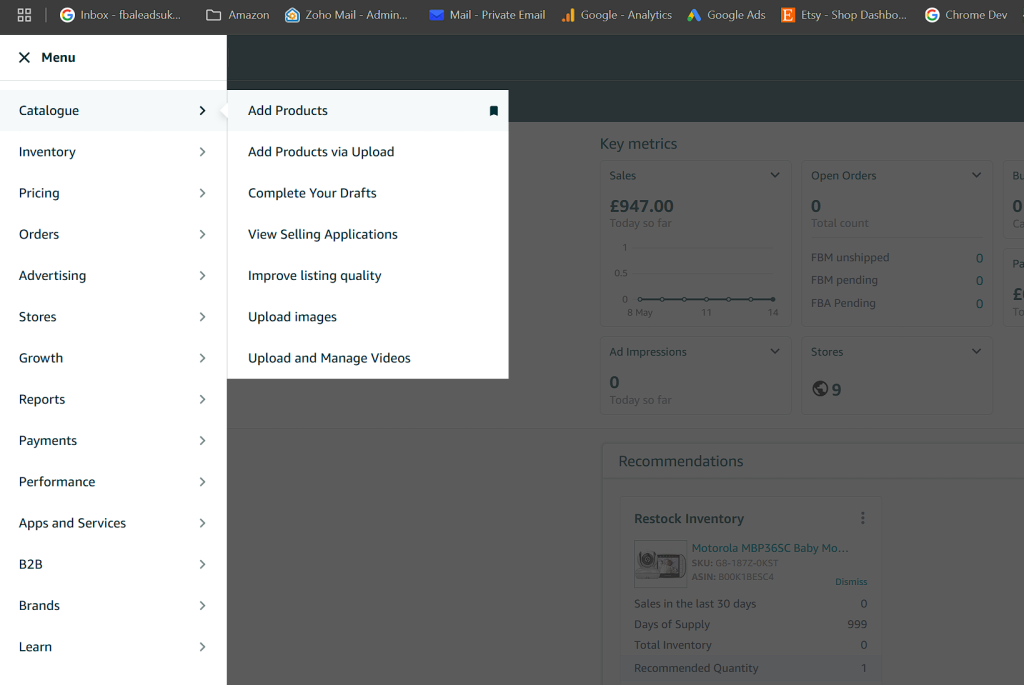
There are two main ways to add products in seller central in Amazon:
1. Matching to Existing Listings
If the product you want to sell already exists on Amazon:
- Go to “Inventory” then “Add a Product”
- Search for the product using the ASIN, UPC, EAN, or keywords
- Select “Sell this product” when you find a match
- Enter your specific offer details (price, condition, quantity)
2. Creating New Listings
If you’re adding a brand new product to Amazon:
- Go to “Inventory” then “Add a Product”
- Select “Create a new product listing”
- Choose the appropriate product category
- Fill in all product details including:
- Product title (200 characters max)
- High-quality images (main image on white background)
- Detailed product description
- Bullet points highlighting key features
- Keywords for search visibility
- Product attributes (size, color, etc.)
Most listings require a product identifier such as a UPC, EAN, ISBN, or GTIN. If your product doesn’t have one, you may need to apply for a GTIN exemption through Seller Central.
For products with variations like different sizes or colors, you can use the Variation Wizard in Seller Central to create parent-child relationships between similar products, improving customer shopping experience.
Fulfillment Options in Seller Central
Amazon offers two main fulfillment methods you can manage through seller central in Amazon:
Fulfillment by Amazon (FBA)
With FBA, Amazon handles storage, packaging, and shipping of your products, plus customer service and returns.
Benefits include:
- Prime eligibility for your products
- Amazon’s trusted customer service handling inquiries
- Simplified international sales
- Focus on growing your business instead of logistics
To use FBA:
- Create a shipping plan in Seller Central
- Prepare products according to Amazon’s requirements
- Ship inventory to Amazon’s fulfillment centers
- Amazon handles the rest when orders come in
Fulfillment by Merchant (FBM)
With this option, you store your own inventory and ship directly to customers.
Best for:
- Items with low profit margins (avoiding FBA fees)
- Oversized or special handling products
- Low-volume sellers
- Products with slow turnover
To fulfill orders yourself:
- Receive order notifications from Seller Central
- Package items according to Amazon standards
- Ship within promised timeframes
- Upload tracking information to Seller Central
Monitoring Performance in Seller Central
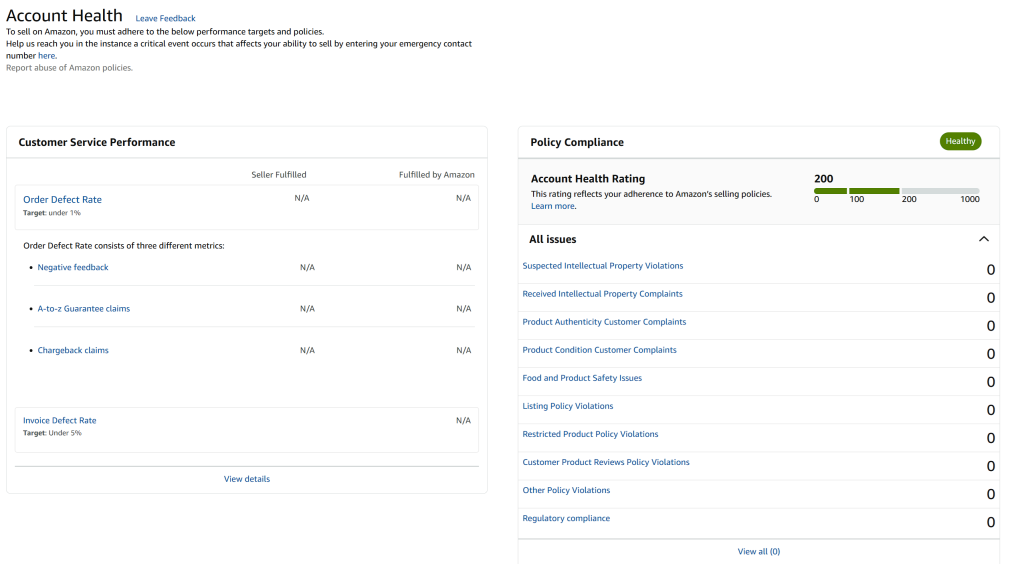
Keeping track of your performance metrics is crucial for maintaining good standing on Amazon. In seller central in Amazon, you can access your Account Health dashboard under the Performance tab.
Key metrics to monitor:
- Order Defect Rate (ODR): Combination of negative feedback, A-to-Z claims, and chargebacks. Keep below 1%.
- Late Shipment Rate: Orders shipped after the expected ship date. Aim for under 4%.
- Pre-fulfillment Cancel Rate: Orders canceled by you before shipment. Keep below 2.5%.
- Valid Tracking Rate: Orders with valid tracking numbers. Maintain above 95%.
- Customer Response Time: How quickly you respond to customer messages. Aim for under 24 hours.
Failing to maintain these metrics could result in account suspension, so check your Account Health regularly.
Common Questions About Amazon Seller Central
How much does it cost to sell on Amazon Seller Central?
The cost depends on your selling plan. The Individual plan charges $0.99 per item sold, while the Professional plan costs $39.99 per month. Additionally, Amazon charges referral fees (typically 8-15% depending on the category) and FBA fees if you use Amazon’s fulfillment services.
Can I sell internationally through my Seller Central account?
Yes, Amazon offers unified accounts that allow you to sell across multiple marketplaces. Through the North American Unified Account, you can sell in the US, Canada, and Mexico. The European Unified Account covers the UK, Germany, France, Italy, Spain, Netherlands, and more.
How do I handle customer returns in Seller Central?
For FBA orders, Amazon handles the returns process. For seller-fulfilled orders, you’ll receive return requests through Seller Central. You can authorize returns, issue refunds, and communicate with customers through the Returns dashboard.
What do I do if my Seller Central account gets suspended?
If your account is suspended, you’ll need to submit an appeal through Seller Central. Create a plan of action explaining the cause of the issues, the actions you’ve taken to resolve them, and how you’ll prevent them in the future. Be professional, specific, and factual in your appeal.
How can I contact Amazon Seller Support?
In Seller Central, click on the “Help” button in the top right corner. You can browse help topics or click “Get Support” to open a case with Seller Support. If you need to speak directly with support, you can find the Amazon Seller Support phone number through your Seller Central account.
Final Thoughts on Getting Started with Seller Central
Becoming familiar with seller central in Amazon is essential for any merchant looking to succeed on the platform. Take time to explore each section of the dashboard, understand the key metrics that impact your business, and regularly check announcements for important updates.
Remember that Amazon is constantly evolving its seller tools and policies. Staying informed through Seller Central announcements and the Amazon Seller Forums will help ensure your business stays compliant and competitive.
For more detailed information, check out Amazon’s official Seller Central Help pages which provide extensive documentation on all aspects of selling on the platform.


